Home Screen Widgets
8 content types and 14 size variants on both iOS and Android, including medium Spending Rhythm and small Record Bee Trail added in v3.8.3.
Pin your books to the home screen — see today's spending, your net worth trend, and what's left of the budget without opening the app. Want to record something? Tap a category button on the widget and jump straight into the record screen.
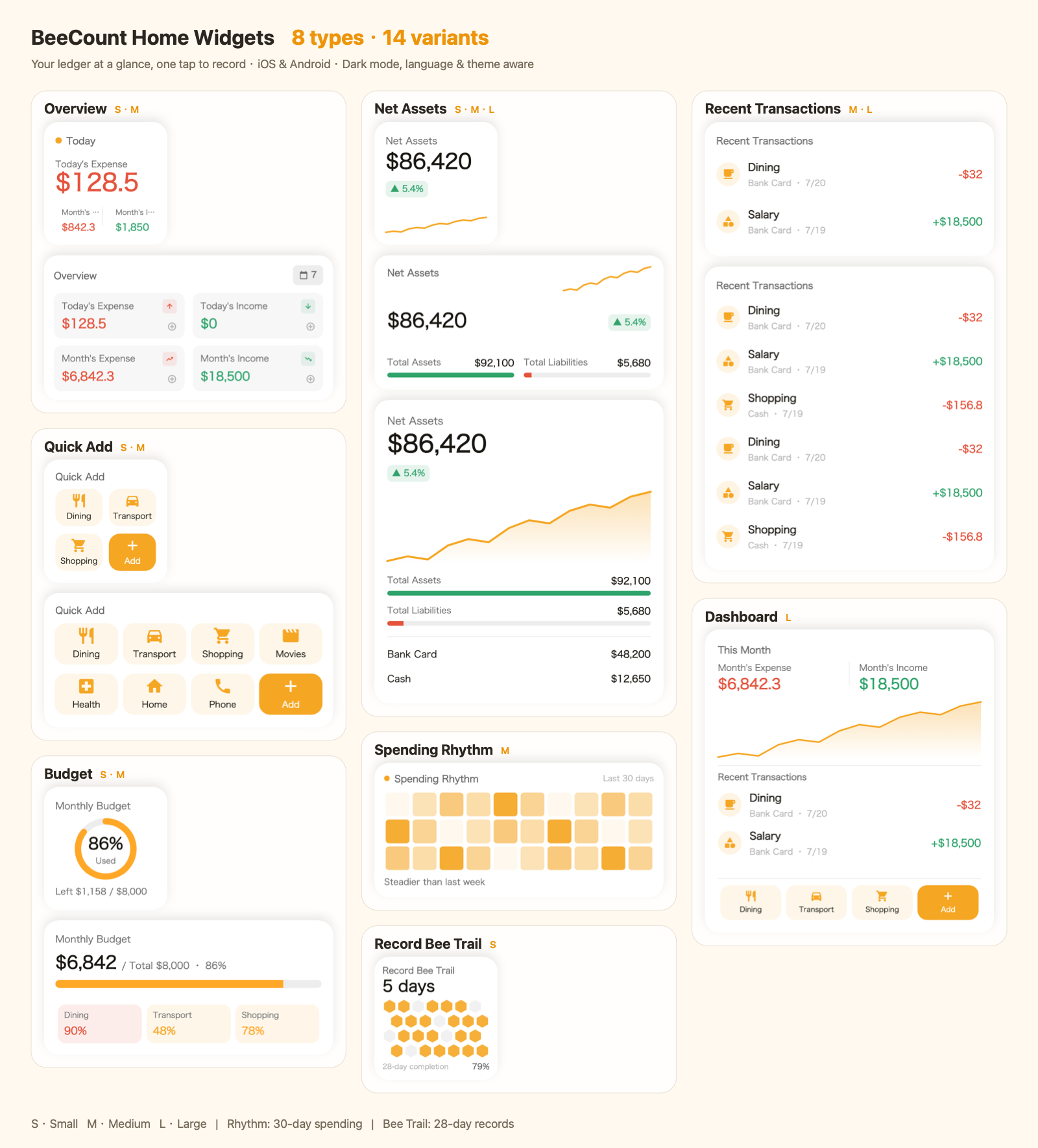
8 types and 14 variants
| Widget | Sizes | Shows | Tap action |
|---|---|---|---|
| Overview | S · M | Today's expense, this month's expense / income | Opens the transactions page |
| Net assets | S · M · L | Net worth and trend line; large adds total assets / liabilities and account details | Opens the assets page |
| Quick add | S · M | Frequent category buttons + "Add"; medium fills the card with a 2×4 grid of 7 category shortcuts (v3.7.2) | Category buttons open the record screen with that category preselected |
| Budget | S · M | Monthly budget used % / remaining | Opens the budget page |
| Recent transactions | M · L | Latest records | Tap a row to open that transaction's detail |
| Dashboard | L | Monthly overview + trend + recent records + quick add, all in one | Each block jumps to its matching page |
| Spending Rhythm | M | Spending heatmap for the last 30 days and a comparison of the latest seven days with the previous seven | Opens statistics |
| Record Bee Trail | S | Recorded-day honeycomb, current streak, and recorded-day percentage over the last 28 days | Opens transactions |
Spending Rhythm and Record Bee Trail
Spending Rhythm displays spending across the last 30 calendar days. Darker cells represent higher spending relative to other days in that window. A short label compares the latest seven days with the previous seven as steady, increasing, or decreasing. It describes records, not whether spending is financially healthy.
Record Bee Trail focuses on recording habits. Honeycomb cells show which of the last 28 days have records, along with the consecutive recorded days ending today and the percentage of recorded days in the window. If today has no record, the streak is zero; the displayed streak is capped at the 28-day window. It uses transaction dates, so backdated entries affect those dates rather than creating an independent check-in history.
Both widgets use calendar-day records from the current ledger. Their 30/28-day windows do not shift with your custom month-start day. Records marked Exclude from Income/Expense are excluded. Empty windows show an empty state rather than inferred data.
How to add
iOS: long-press an empty spot on the home screen → tap "+" in the top corner (or "Edit → Add Widget") → search "BeeCount" → swipe to pick a style and size → Add.
Android: long-press an empty spot on the home screen → choose "Widgets" → find "BeeCount" → press and drag the one you want onto the screen.
Every widget shows a real preview with its name (bilingual) in the picker — what you see is what you get.
Stays in sync with the app
- Dark mode: follows the system instantly;
- Language & theme color: always match your in-app settings;
- Ledger scope: overview, budget, and recent transactions come from your current ledger and respect its custom month start day;
- Auto refresh: widgets update automatically after recording, switching ledgers, or changing themes.
💡 Some Android launchers handle third-party widget sizes differently; if a variant renders oddly, try an adjacent size or the stock launcher.